🌊 Tide

Information moves like the tide. We pick the waves worth studying.

中文

← Today's tide

Published 2026-07-05 · Tsinghua Shenzhen International Graduate School, Tsinghua University, Xiaomi · Niu Lian, Alan Chen, Zhehao Yu et al.

UI-MOPD: Multi-Platform On-Policy Distillation for Continual GUI Agent Learning

arXiv · HuggingFace · ▲68

Abstract (verbatim)

Recent advances in multimodal foundation models and agent systems have driven GUI agents from single-platform task execution toward cross-platform interaction. However, building multi-platform GUI agents remains challenging. On one hand, high-quality and executable cross-platform interaction trajectories are still scarce, and existing data often suffer from limited platform coverage. On the other hand, different platforms exhibit distinct interaction conventions, making joint or continual training prone to behavioral pattern mixing, platform-specific capability degradation, and catastrophic forgetting. To address these challenges, we construct Uni-GUI, a high-quality cross-platform GUI interaction dataset, and propose UI-MOPD, the first method that incorporates multi-teacher on-policy distillation into continual learning for GUI agents. UI-MOPD dynamically selects a platform-specific teacher according to the current environment and transfers platform-specific behavioral priors to a shared policy through platform-conditioned distillation, enabling adaptation to new platforms while preserving capabilities on existing ones. Experiments on OSWorld and MobileWorld show that UI-MOPD achieves task success rates of 38.2% and 12.0%, respectively, demonstrating its effectiveness in balancing cross-platform capability retention and new-platform adaptation. Project page: https://elispectre.github.io/UI-MOPD/.

Background

Background Analysis

1. Technical Context and Real-World Needs
Advances in multimodal foundation models (e.g., Qwen-VL, Claude) and agent systems have enabled GUI agents to automate tasks across digital environments (e.g., web navigation, mobile app interactions). However, real-world workflows often span heterogeneous platforms (computers, phones, web services), requiring agents to adapt to new environments while preserving platform-specific interaction conventions (e.g., closing a window on a computer vs. pressing "back" on a phone). The core challenge is: How can a single GUI agent continuously learn across platforms without losing its ability to interact effectively with each platform?

2. Limitations of Previous Approaches
Prior methods faced two critical bottlenecks:
- Data Scarcity: Existing datasets (e.g., OpenCUA) were often single-platform-focused, with noisy or misaligned actions, making cross-platform training unreliable.
- Behavioral Mixing: Simply combining data from multiple platforms led to "averaged" policies that confused interaction conventions (e.g., mixing computer scrolling with mobile swiping), causing catastrophic forgetting of platform-specific behaviors.
These issues prevented traditional approaches from balancing adaptation to new platforms and retention of existing capabilities.

3. Proposed Solution
The paper introduces UI-MOPD, a method that leverages multi-teacher on-policy distillation:
- Dynamic Teacher Selection: A "platform-specific teacher" is chosen based on the current environment (e.g., a computer teacher for desktop tasks, a mobile teacher for smartphone tasks), ensuring platform-appropriate behaviors are distilled into a shared policy.
- Behavioral Anchors: Each teacher acts as a stable reference, preventing the shared policy from mixing incompatible interaction patterns during learning.
Additionally, the team built Uni-GUI, a high-quality dataset with ~10K cross-platform trajectories, addressing data limitations.

4. Key Differences from Prior Work
Unlike traditional methods (e.g., mixed fine-tuning or model merging), UI-MOPD:
- Dynamically adapts to environments rather than statically aggregating data, avoiding behavioral confusion.
- Preserves platform-specific behaviors using teacher models as anchors, mitigating catastrophic forgetting.
Experiments show UI-MOPD achieves 38.2% and 12.0% success rates on OSWorld (computer) and MobileWorld (phone), outperforming baselines and demonstrating balanced cross-platform learning.
Method, Figure by Figure

M E T H O D1 / 5

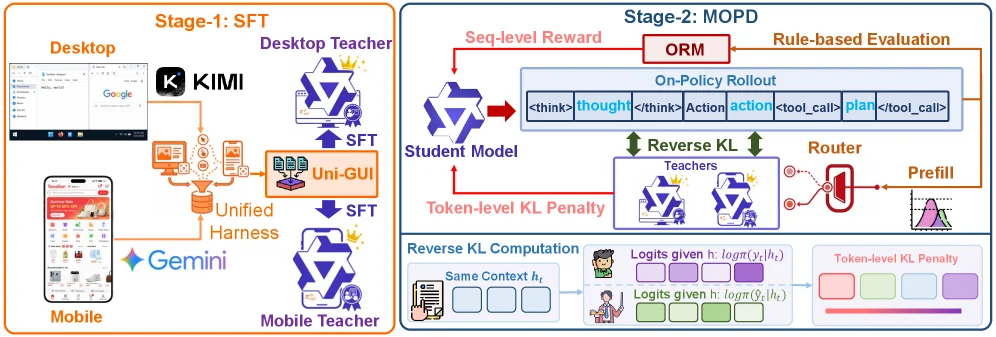
Figure 2 : Overview of UI-MOPD training pipeline. In Stage 1, platform-specific desktop and mobile teachers are obtained by supervised fine-tuning on Uni-GUI trajectories collected from a unified cross-platform harness. In Stage 2, a shared student policy is trained with multi-teacher on-policy distillation, where platform-conditioned routing selects the corresponding teacher to provide reverse-KL guidance together with rule-based rollout rewards.

This figure illustrates the training pipeline of the UI-MOPD method, which consists of two main stages, clearly presenting the entire process from data collection to model training.

First, look at Stage-1: SFT (Supervised Fine-Tuning Stage). In this stage, the goal is to obtain platform-specific teacher models. On the left, the data sources are shown: the desktop (Desktop) has interfaces like Google, and the mobile (Mobile) has mobile app interfaces. These cross-platform GUI interaction data are collected and integrated through the "Unified Harness". The resulting "Uni-GUI" dataset is then used to train two platform-specific teacher models: a "Desktop Teacher" and a "Mobile Teacher" using the "SFT (Supervised Fine-Tuning)" method. The arrows indicate the direction of data and training flow: from the cross-platform GUI interaction data (processed by the Unified Harness) to the SFT training process of the two teacher models, ultimately obtaining platform-specific teacher models for desktop and mobile.

Next is Stage-2: MOPD (Multi-Platform On-Policy Distillation Stage). The core of this stage is to train a shared student model (Student Model) and transfer platform-specific behavioral priors through multi-teacher on-policy distillation. First, the training of the student model involves several key components:

  1. On-Policy Rollout: The student model performs policy rollout here, generating a series of actions and thoughts (such as , , , etc.). This process generates a "Seq-level Reward", which is provided by the "ORM (possibly a reward model)" through "Rule-based Evaluation". At the same time, the result of this rollout process is used for the subsequent distillation process.

  2. Teachers: Including the desktop teacher and the mobile teacher, they provide guidance during the distillation process. The key here is the "Router" component, which dynamically selects the corresponding teacher model (platform-conditioned routing) based on the current environment (platform). Then, "Reverse KL (Reverse Kullback-Leibler Divergence)" is used to transfer knowledge: the KL divergence between the output of the student model and the output of the teacher model under the same context (Same Context \( h_t \)) is calculated to obtain the "Token-level KL Penalty", which is fed back to the student model to adjust its policy, making it closer to the behavioral prior of the teacher model.

  3. Reverse KL Computation: This part details how to calculate the reverse KL divergence. For the same context \( h_t \), the logits given by the student model (\( \log(\pi(y_t|h_t)) \)) and the logits given by the teacher model (\( \log(\hat{\pi}(y_t|h_t)) \)) are used to calculate the KL divergence, and then the token-level KL penalty is obtained. This penalty affects the training of the student model, ensuring that it learns new platforms while retaining the capabilities of existing platforms.

The flow of data or information is as follows: In Stage-1, cross-platform GUI interaction data are processed by the Unified Harness and then used to train the platform-specific teacher models; in Stage-2, the student model generates behaviors through online policy rollout. At the same time, the router component selects the corresponding teacher model based on the platform, and the behavioral prior of the teacher model is transferred to the student model through the calculation of the reverse KL divergence. Combined with the sequence-level reward, the strategy of the student model is optimized, enabling it to adapt to new platforms while retaining the capabilities of existing platforms.

This figure reveals the specific operation of the UI-MOPD method: first, platform-specific teacher models are trained through the Unified Harness to collect cross-platform data (SFT stage); then, in the MOPD stage, online policy distillation is used, and platform-specific teacher models are dynamically selected through routing. The behavioral prior of the teacher model is transferred to the student model through reverse KL divergence and rule-based rewards, thereby achieving continuous learning of cross-platform GUI agents and balancing the adaptation to new platforms and the retention of capabilities of existing platforms.

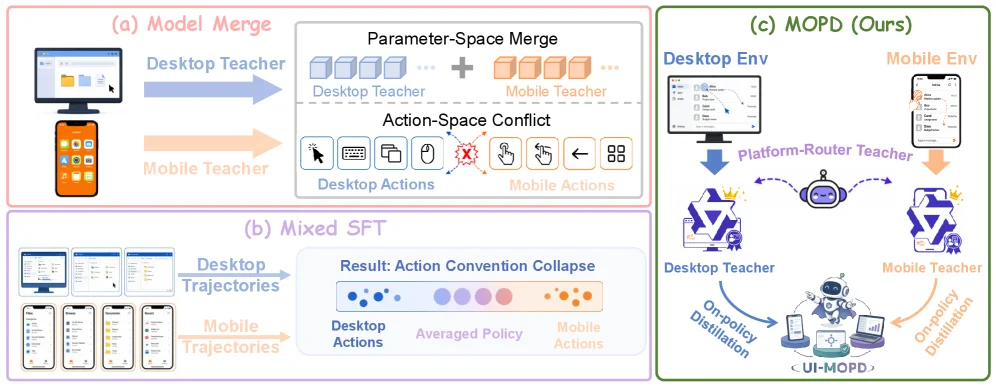
Figure 1 : Motivation of UI-MOPD. Naively combining desktop and mobile signals, as in model merging or mixed SFT, can mix platform-specific behavioral conventions and produce an averaged policy. UI-MOPD uses platform-conditioned routing and multi-teacher on-policy distillation to integrate platform-specific expertise into a shared GUI agent.

This figure (Figure 1) illustrates the motivation of the UI - MOPD method by comparing three different strategies to show its necessity and advantages.

First, look at the "Model Merge" section in part (a). It shows the process of directly merging the parameter spaces of the Desktop Teacher and the Mobile Teacher. The Desktop Teacher and the Mobile Teacher provide their respective parameters (represented by cubes of different colors), but this direct merging will lead to "Action - Space Conflict". Specifically, the actions of the desktop end (such as mouse clicks, keyboard inputs, etc.) and the actions of the mobile end (such as touches, gestures, etc.) are incompatible in the action space. Direct merging will cause conflicts (marked by a red cross in the figure), and the advantages of the two cannot be effectively combined.

Next is the "Mixed SFT" section in part (b). Here, the desktop - end trajectories (Desktop Trajectories) and mobile - end trajectories (Mobile Trajectories) are mixed for training. The result is "Action Convention Collapse", that is, the original action patterns of the desktop end and the mobile end are averaged, forming an "Averaged Policy". From the figure, we can see that the actions of the desktop end (blue dots) and the actions of the mobile end (orange dots) become blurred after averaging, losing the specificity of each platform. This will lead to the performance degradation of the model on different platforms and cannot adapt well to the interaction habits of specific platforms.

Then, look at the "MOPD (Ours)" section in part (c). It shows a more effective strategy. First, there is a "Platform - Router Teacher", which selects the appropriate teacher (Desktop Teacher or Mobile Teacher) according to the current environment (Desktop Env or Mobile Env). Then, the platform - specific behavioral prior knowledge is transferred to the shared GUI agent (UI - MOPD) through "On - policy Distillation". Specifically, the desktop - end teacher transfers the desktop - end interaction knowledge to the agent through "On - policy Distillation", and the mobile - end teacher also transfers the mobile - end interaction knowledge to the agent through "On - policy Distillation". This method avoids the problems caused by direct parameter merging or trajectory mixing. It can dynamically select the teacher suitable for the current platform, so as to integrate the platform - specific professional knowledge into the shared GUI agent, retaining the capabilities of the existing platform while being able to adapt to the interaction needs of the new platform.

In summary, this figure, by comparing model merging, mixed supervised fine - tuning, and our proposed UI - MOPD method, shows how UI - MOPD integrates platform - specific professional knowledge through platform - conditional routing and multi - teacher on - policy distillation, solving the problems of behavioral pattern mixing and capability degradation in cross - platform GUI agent learning.

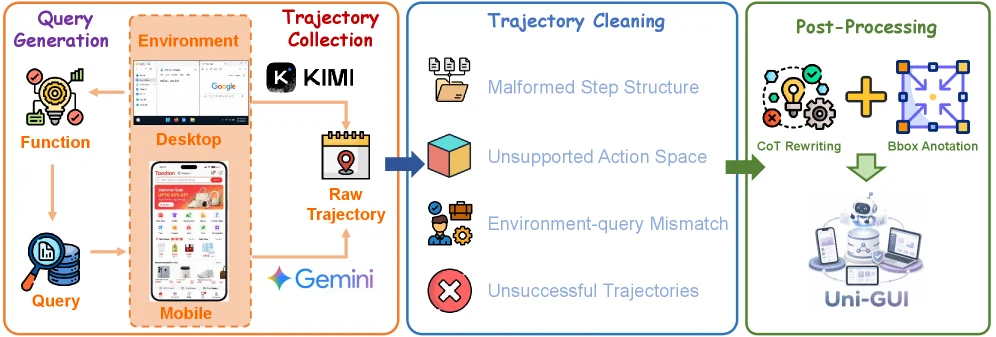
Figure 4 : Overview of Unified Cross-Platform Data Collection Harness.

This diagram illustrates the unified workflow for building a cross-platform GUI interaction dataset, divided into four core stages: Query Generation, Trajectory Collection, Trajectory Cleaning, and Post-Processing. Data/information flows from left to right, ultimately used to train multi-platform GUI agents (e.g., Uni-GUI).

1. Query Generation

The goal of this stage is to generate queries and functions that drive GUI interactions. The "Function" module (with a target icon) and "Query" module (with a magnifying glass + database icon) on the left interact via arrows: the function module likely defines task types, while the query module generates specific interaction instructions (e.g., "Open application X," "Click button Y"). These queries serve as input for subsequent trajectory collection, guiding the agent to perform actions in the environment.

2. Trajectory Collection

The core of this stage is collecting interaction trajectories in multi-platform environments:
- Environment: Includes "Desktop" (e.g., browser interface) and "Mobile" (e.g., mobile app interface), covering GUI scenarios across different platforms.
- Data Source: Tools/models like "KIMI" and "Gemini" interact with the environment to generate "Raw Trajectory." The arrows indicate: Queries drive the agent to perform actions in desktop/mobile environments, and the tools record operation sequences (e.g., clicks, inputs, navigation) to form raw trajectory data.

3. Trajectory Cleaning

Raw trajectories have quality issues and require filtering/correction:
- The cleaning goal addresses four types of problems (each with an icon and description):
- Malformed Step Structure: Operation steps in the trajectory have incorrect formats (e.g., missing required parameters, chaotic step order).
- Unsupported Action Space: Operations exceed the target platform’s capabilities (e.g., executing desktop-specific actions on mobile).
- Environment-Query Mismatch: The query’s task is incompatible with the current environment (e.g., performing system settings operations in a shopping app).
- Unsuccessful Trajectories: The trajectory fails to complete the task after execution (e.g., unresponsive button clicks, interrupted operations).
- The cleaning process uses filtering (blue arrows) to retain "high-quality, executable" trajectories, providing reliable data for subsequent training.

4. Post-Processing

Cleaned trajectories require further processing to adapt to multi-platform GUI agent training:
- CoT Rewriting (represented by a lightbulb + gear icon): Reconstructs the operational logic of trajectories to enhance step interpretability and generalization (e.g., rewriting "Click button A" as "To complete task X, click button A to trigger operation Y").
- Bbox Annotation (represented by a cross + square icon): Annotates the positions of GUI elements (e.g., buttons, text boxes) to help the agent learn visual positioning.
- Finally, the processed data trains "Uni-GUI" (a multi-platform GUI agent). The green arrow indicates data flow to the agent, enabling it to learn cross-platform interaction strategies.

Methodology Logic (From the Diagram)

The entire workflow is a "data-driven multi-platform GUI agent training pipeline":
1. "Query Generation" creates task instructions to drive interactions in multi-platform environments;
2. After collecting raw trajectories, "Trajectory Cleaning" filters low-quality data to ensure training data reliability;
3. "Post-Processing" (CoT rewriting, bbox annotation) enhances data expressiveness;
4. The processed data trains Uni-GUI, allowing it to continuously learn across platforms (e.g., desktop, mobile)—retaining existing platform capabilities while adapting to new platform interaction rules.

This workflow solves "data scarcity and behavior pattern confusion in cross-platform GUI agent training": By collecting data across platforms, cleaning to improve data quality, and optimizing data expression via post-processing, it supports continuous distillation learning from "multi-teacher (platform-specific)" to "single-strategy (shared)" (e.g., the UI-MOPD method in the paper).

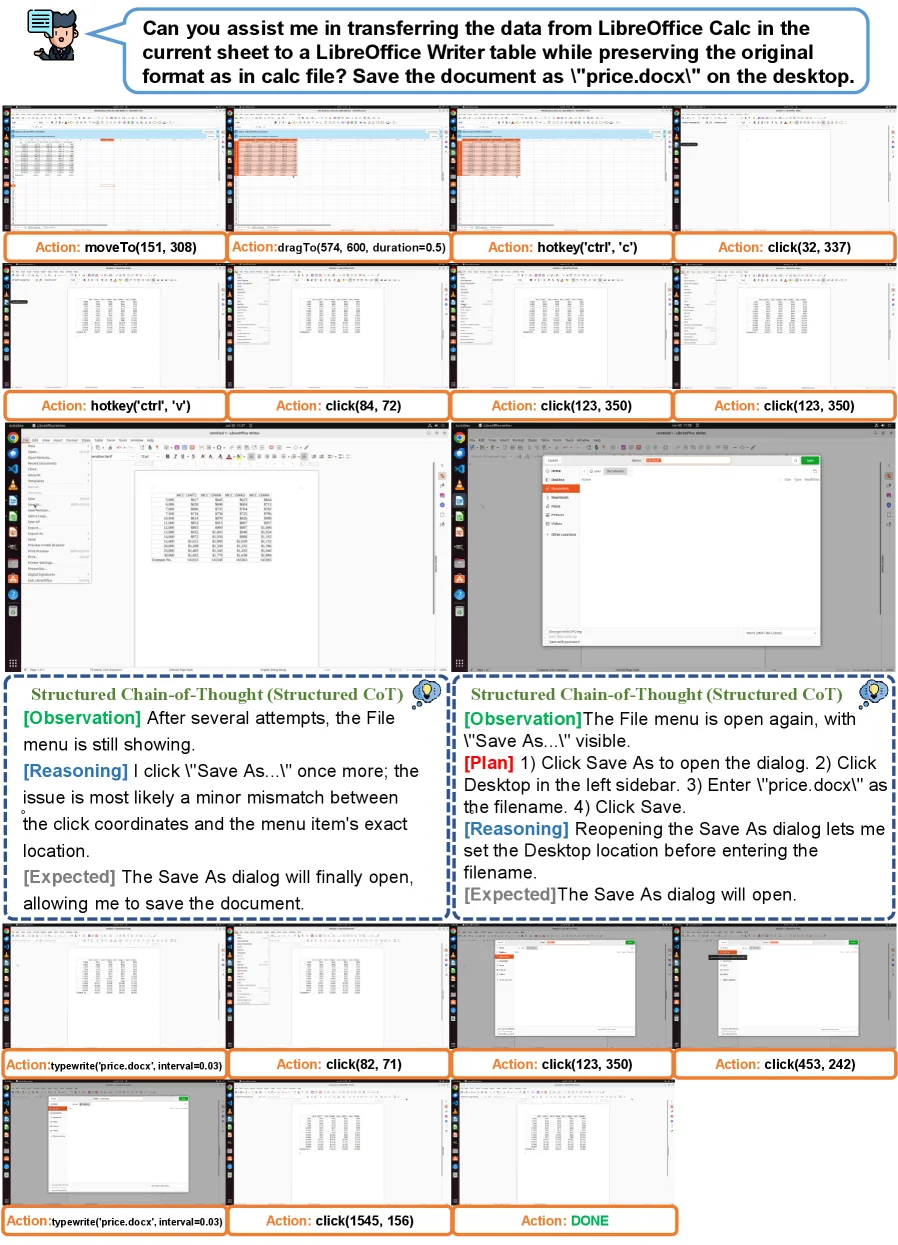
Figure 5 : Desktop task execution example of UI-MOPD.

This image (Figure 5) illustrates an example of the UI-MOPD method executing a specific task in a desktop environment: "Transferring data from the current sheet in LibreOffice Calc to a table in LibreOffice Writer while preserving the original formatting from the Calc file, and saving the document as 'price.docx' on the desktop."

We can break down the content of the image into several key parts to understand the operational flow of the UI-MOPD method:

  1. Task Objective and Initial Operations:

    • At the top of the image, a dialog box clearly states the task: "Can you assist me in transferring the data from LibreOffice Calc in the current sheet to a LibreOffice Writer table while preserving the original format as in calc file? Save the document as \"price.docx\" on the desktop." This sets the overall goal of the operation.
    • The next few lines of the image (first and second rows) show operations in LibreOffice Calc. These operations include:
      • moveTo(151, 308): Moving the mouse to specific coordinates, possibly to select the start of a data region.
      • dragTo(574, 600, duration=0.5): Dragging the mouse to select a data region.
      • hotkey('ctrl', 'c'): Using a shortcut key to copy the selected data.
      • click(32, 337): Clicking a certain position, possibly to switch to LibreOffice Writer or prepare for pasting.
      • hotkey('ctrl', 'v'): Using a shortcut key to paste the data.
    • These steps clearly demonstrate the process of copying data from Calc and pasting it into Writer.
  2. Document Saving Process and Decision-Making:

    • The middle part of the image shows the document-saving operations, which are explained in detail through two "Structured Chain-of-Thought (Structured CoT)" boxes, revealing how UI-MOPD handles decisions and problem-solving during interactions.
    • First CoT Box (Center-Left):
      • [Observation]: Notes that "File menu is still showing" and, after several attempts, "the issue is most likely a minor mismatch between the click coordinates and the menu item's exact location." This indicates that UI-MOPD may encounter problems due to imprecise coordinates when attempting operations.
      • [Reasoning]: Decides to "click \"Save As...\" once more."
      • [Expected]: Expects that "the Save As dialog will finally open, allowing me to save the document."
    • Second CoT Box (Center-Right):
      • [Observation]: Confirms that "File menu is open again, with \"Save As...\" visible."
      • [Plan]: Lists specific saving steps: 1) Click "Save As..." to open the dialog; 2) Click "Desktop" in the left sidebar; 3) Enter the filename "price.docx"; 4) Click "Save."
      • [Reasoning]: Explains that reopening the "Save As" dialog is to "set the Desktop location before entering the filename."
      • [Expected]: Expects that "the Save As dialog will open."
  3. Executing the Save Operation:

    • Based on the decisions from the above CoT, the image shows specific saving operation steps:
      • typewrite('price.docx', interval=0.03): Typing the filename "price.docx."
      • click(82, 71): Clicking a certain position, which, according to the CoT plan, is likely clicking the "Desktop" option.
      • click(123, 350): Clicking the "Save" button (possibly appearing twice or indicating confirmation).
      • click(453, 242): Possibly another confirmation click or a related operation.
    • The last line shows Action: typewrite('price.docx', interval=0.03) appearing again, followed by Action: click(1545, 156) and Action: DONE. This indicates that the filename input and the final save click operation have been completed, and the task has been successfully finished.

Specific Explanation of Method Operation: This image reveals the core operational mode of the UI-MOPD method: * Task Decomposition: Breaking down complex tasks (such as data transfer and saving) into a series of specific, executable GUI operation steps. * Observation and Reasoning (Chain-of-Thought): During execution, the system observes the current interface state (Observation), analyzes encountered problems or situations, reasons (Reasoning) to decide the next action, and formulates a plan (Plan). * Dynamic Adaptation and Decision-Making: When encountering problems (such as operation failure due to coordinate mismatch), the system can dynamically adjust its strategy (such as re-clicking a menu item) and execute the correct sequence of operations according to the plan. * Platform-Specific Behavior: Although the image does not explicitly show multi-platform switching, this example demonstrates how, on a specific platform (desktop GUI, such as LibreOffice), UI-MOPD imitates human operations to complete complex tasks, including handling unexpected interface feedback.

Conclusion: Through a specific example of executing a desktop task, this image details how the UI-MOPD method executes complex cross-platform GUI tasks through observation, reasoning, planning, and dynamic adjustment. It clearly presents the entire process from data copying and pasting to file saving and reveals, through Structured CoT boxes, how the agent makes decisions and solves problems when encountering issues, thus effectively completing the specified task.

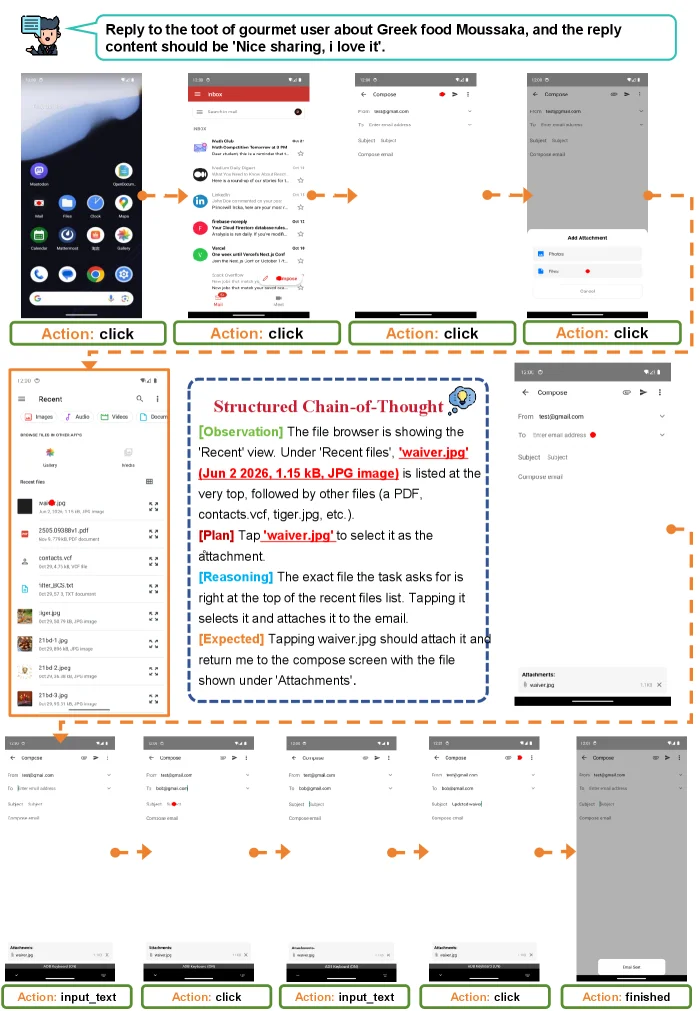
Figure 3 : Mobile task execution example of UI-MOPD.

This figure (Figure 3) illustrates an example of task execution on a mobile device using the UI-MOPD method, clearly demonstrating how the method operates.

We start with the mobile home screen in the top-left corner. This interface displays multiple application icons, representing the user's initial environment. An orange arrow points from this interface to the second interface on the right, labeled "Action: click," indicating the user's first operation is to tap on a specific app (likely an email app based on context).

Next, we see an email application interface with a list of emails. Another orange arrow points from here to the third interface on the right, also labeled "Action: click," signifying the user has tapped to compose a new email or reply to an existing one, entering the email composition screen.

The process then enters a critical decision-making and operation phase, highlighted by a blue dashed box in the figure with the title "Structured Chain-of-Thought." This section details the agent's thought process: - [Observation]: The file browser is showing the 'Recent' view. Under 'Recent files,' 'waiver.jpg' (Jun 2 2024, 1.15 kB, JPG image) is listed at the very top, followed by other files (e.g., a PDF, contacts.vcf, tiger.jpg, etc.). - [Plan]: Tap 'waiver.jpg' to select it as the attachment. - [Reasoning]: The exact file the task asks for is right at the top of the recent files list. Tapping it selects it and attaches it to the email. - [Expected]: Tapping waiver.jpg should attach it and return me to the compose screen with the file shown under 'Attachments'. This chain-of-thought demonstrates how the agent analyzes the current interface state, formulates an action plan, and reasons about the expected outcome.

Immediately following this chain-of-thought, we see the file browser interface where 'waiver.jpg' is highlighted. An orange arrow points from this interface to the next interface on the right, labeled "Action: input_text," indicating the user may have entered some text here (e.g., email subject or body). Subsequently, another orange arrow points to "Action: click," signifying the user has tapped a send button or another relevant control.

The process concludes with an interface labeled "Action: finished," indicating the task has been successfully completed.

The entire flow, through a series of "Action: click" and "Action: input_text" operations, along with the intermediate structured chain-of-thought, demonstrates how UI-MOPD executes a specific task on a mobile platform (e.g., replying to a toot about Greek food Moussaka and attaching an image). Each step clearly shows the user's (or agent's) operation, the change in the interface, and the agent's reasoning process, thus revealing the specific operational mechanism of the method.

← → flip · ↑ ↓ scroll notes · Esc exit